

I created this guide to share what I learned while troubleshooting my own n8n workflows. Although I used ChatGPT for assistance, understanding the suggestions and applying the correct solution still took time. Some instructions assumed basic knowledge that I had yet to develop. Hopefully, this tutorial will help you avoid some of the problems I encountered when I first started troubleshooting my workflow.
What happened?
On 1 November 2026, I noticed that my workflows had stopped working.. They had been working perfectly seven days earlier, but now they were failing. Something was clearly wrong with my automation.
How did I solve it?
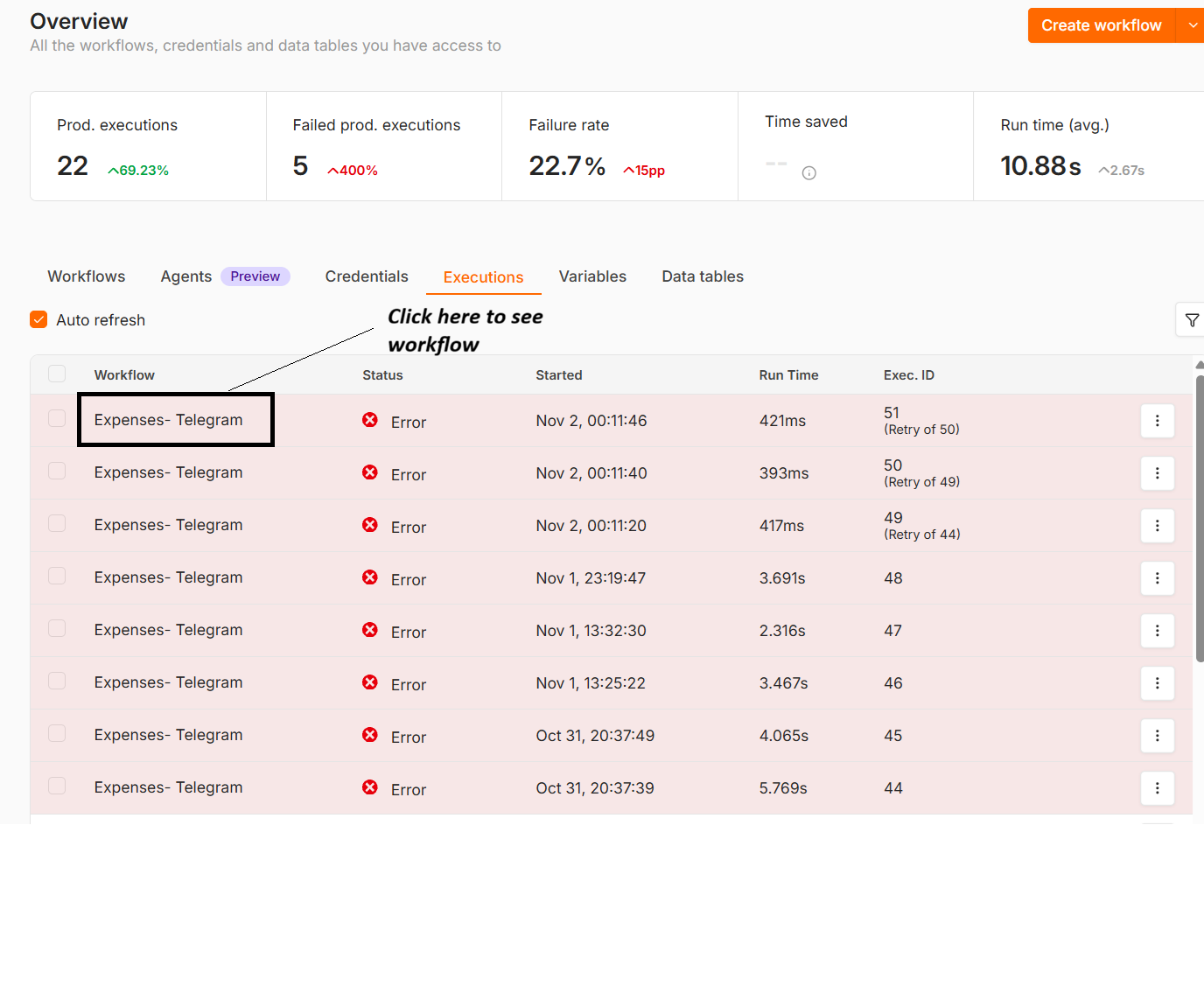
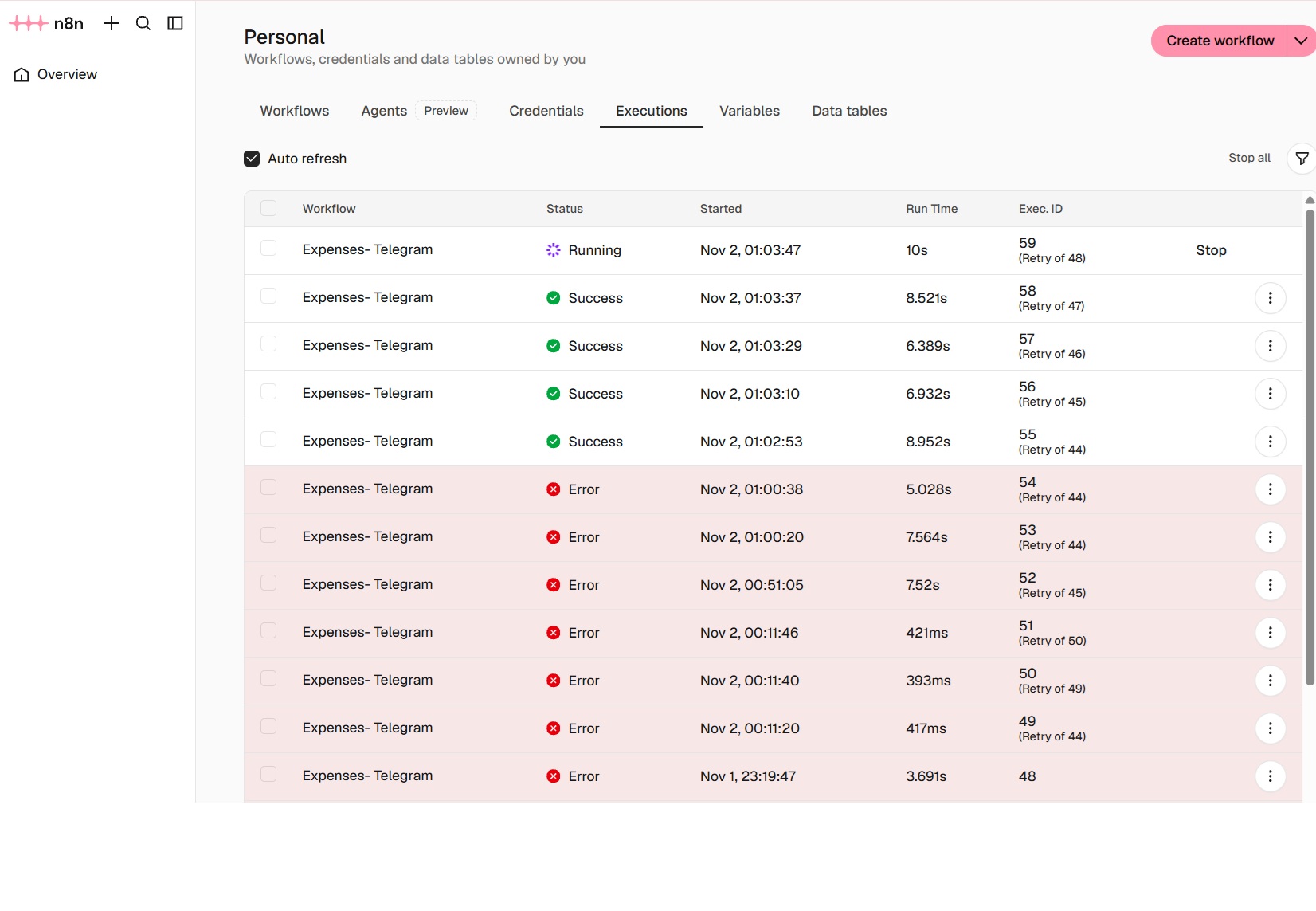
I investigated the issue and started troubleshooting by opening the Executions tab and selecting a failed workflow execution.
The Executions tab shows several runs of my Expenses–Telegram workflow with an Error status. This tells us those runs failed, but it does not yet explain why.
To begin investigating:
- Open Overview → Executions.
- Find a run marked Error.
- Click the failed execution entry to inspect that particular run.
- Locate the node that failed and open its error details.
The execution history is the starting point for investigating failed workflow runs. Available details depend on whether n8n saved the execution data.
Next Step:
Don’t panic or change anything yet.. Start by checking the error status. It looked like there was a problem with one of the nodes. The affected node was the Google Drive Upload file node.
After opening a failed execution, look for the node outlined in red. Here, the Upload file node failed, and the message at the bottom right explains why:
The credential “Google Drive account” needs to be reconnected.
The saved Google Drive connection needs renewed authorisation before n8n can upload files. This message does not indicate a problem with the receipt image or the extracted information.
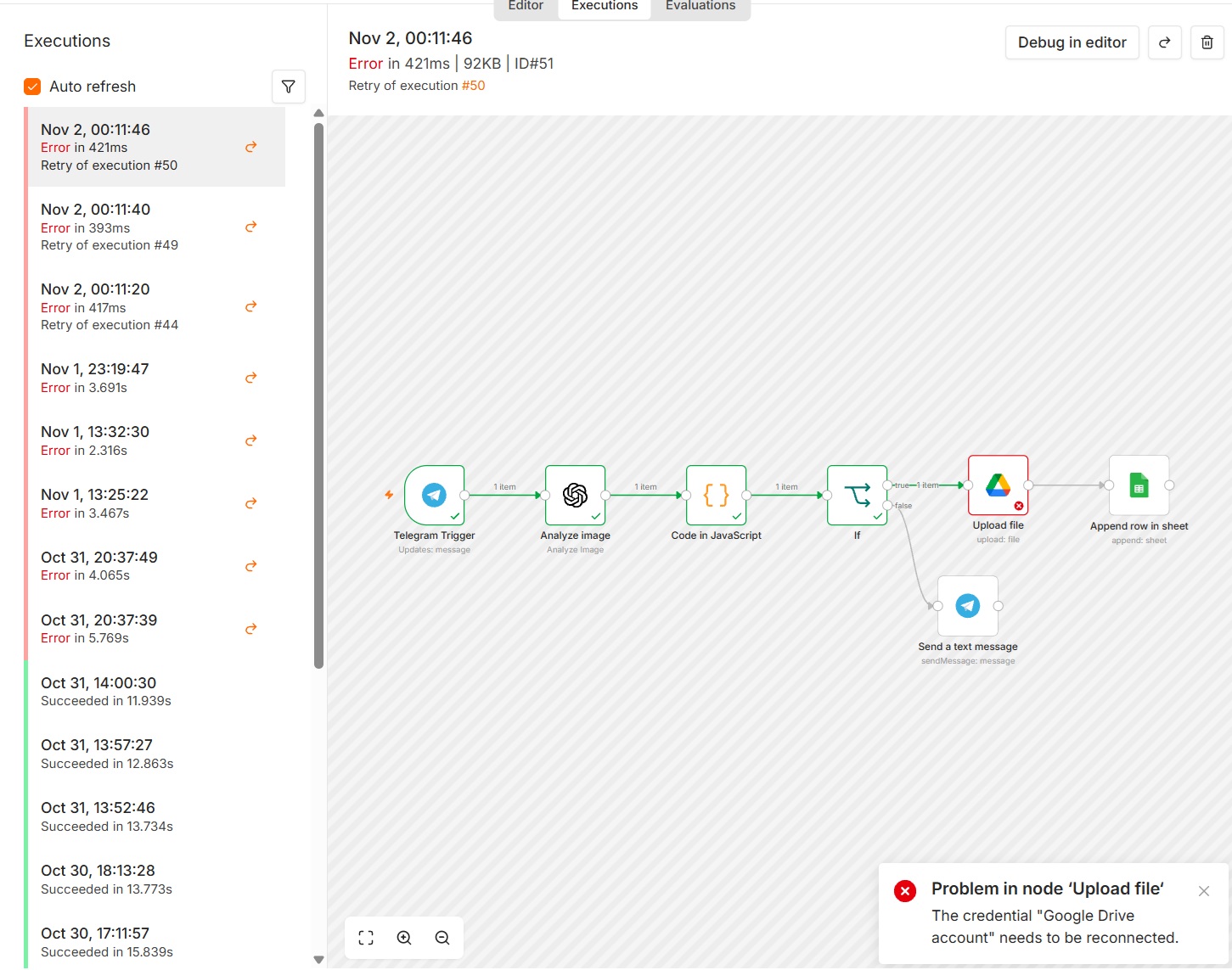
Just click on the Google Drive Upload File node.
To fix this, open the workflow in the Editor, select Upload file, and open its selected Google Drive credential. Reconnect the Google account that has access to the destination folder, complete the authorisation, and save. Then test the upload again.
Although reconnecting the account resolved the immediate issue, I suspected that I had missed a step. I decided to investigate further in Google Cloud Console. I discovered that my app’s publishing status was set to “Testing” under Google Auth Platform → Audience.My next question was how to switch the app to Production to address this problem.
Click Branding to enter the necessary information.
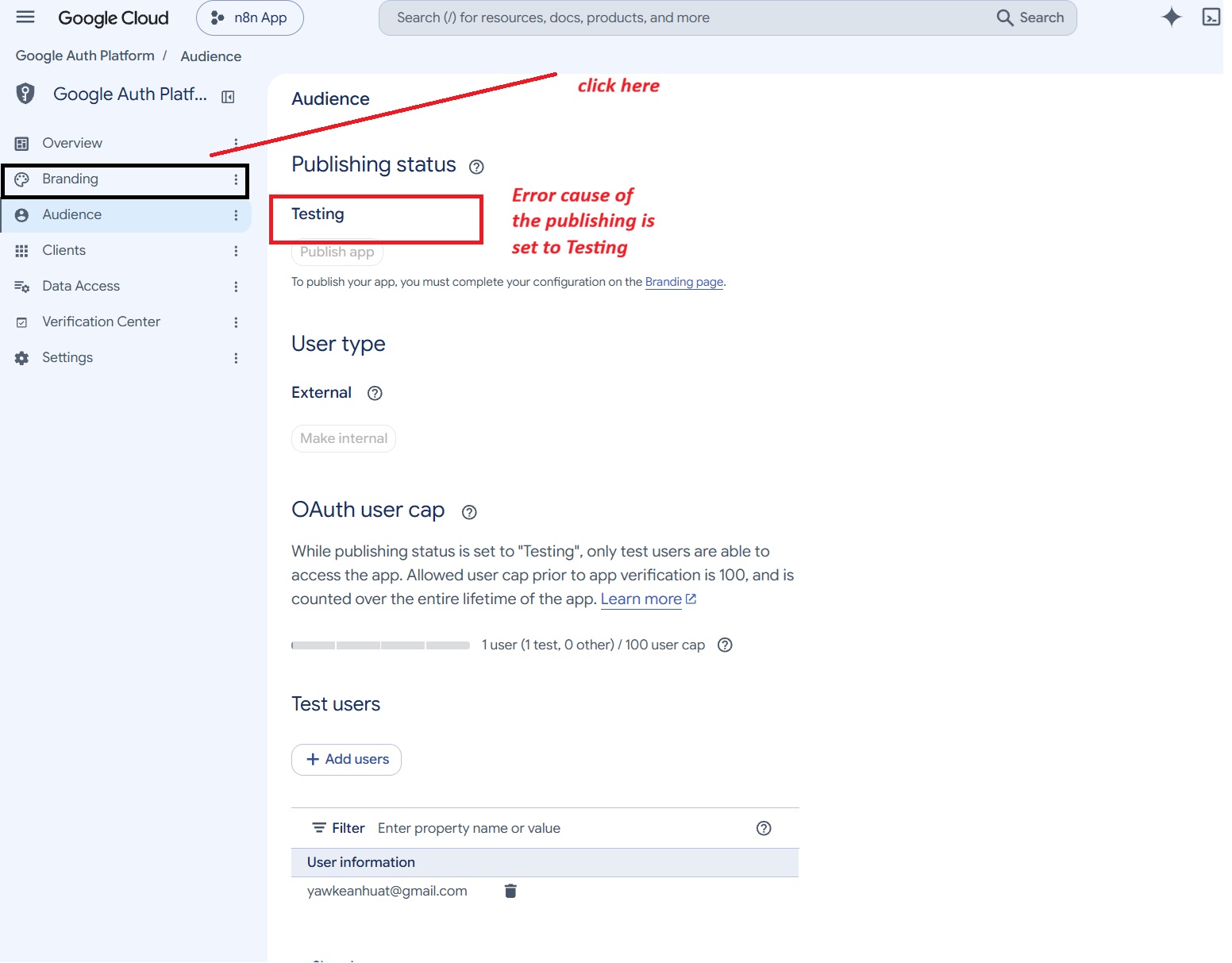
Once you open the Branding page, you will see the screen below.
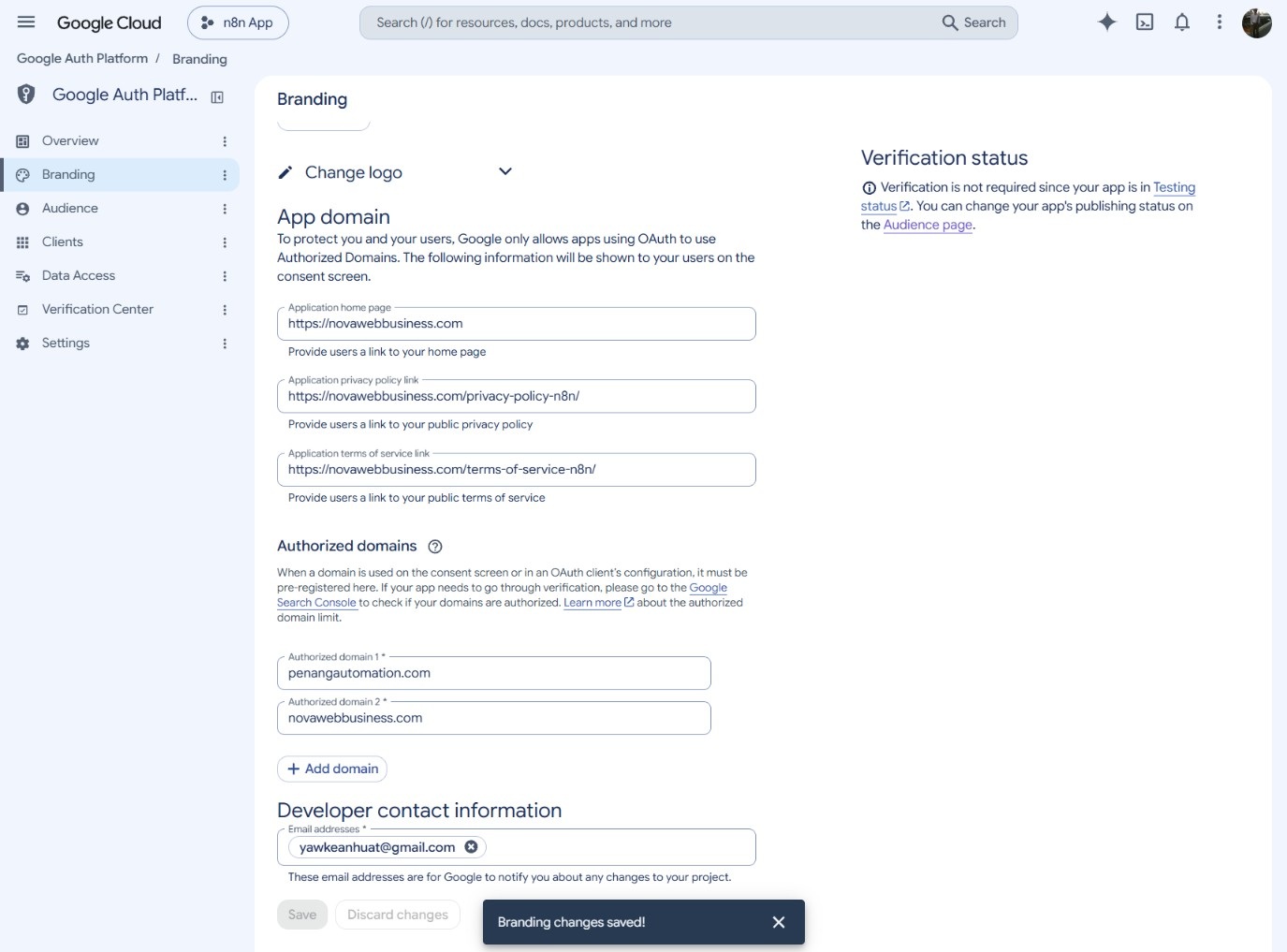
Complete the required fields, including the app name, authorised domains, developer contact information, and links to your privacy policy and terms of service.
As shown below, I added the following authorised domains:
- penangautomation.com
- novawebbusiness.com
I host my n8n instance at www.penangautomation.com, while www.novawebbusiness.com is my company’s official website.
Once you have entered all the information, return to Audience.
Publish the app so its status changes to In production. Return to n8n and reconnect the Google Drive credential, then test the upload. Open Overview → Executions, retry the failed executions, and confirm that the new executions succeed.
Why does this issue happen??
- Why it happens: n8n’s saved Google authorisation is no longer valid.
- Common cause: If your Google OAuth app is in Testing mode, its Google Drive refresh token expires after 7 days.
- Other causes: Access was revoked, the token was unused for a long time, or Google’s token limit was exceeded.
- Immediate fix: Reconnect the Google Drive credential in n8n.
- If it happens every week: Check the OAuth publishing status. Switching to Production, then reconnecting, removes the seven-day Testing limit.
- Note: The screenshot confirms that reconnection is required, but does not confirm the exact cause.
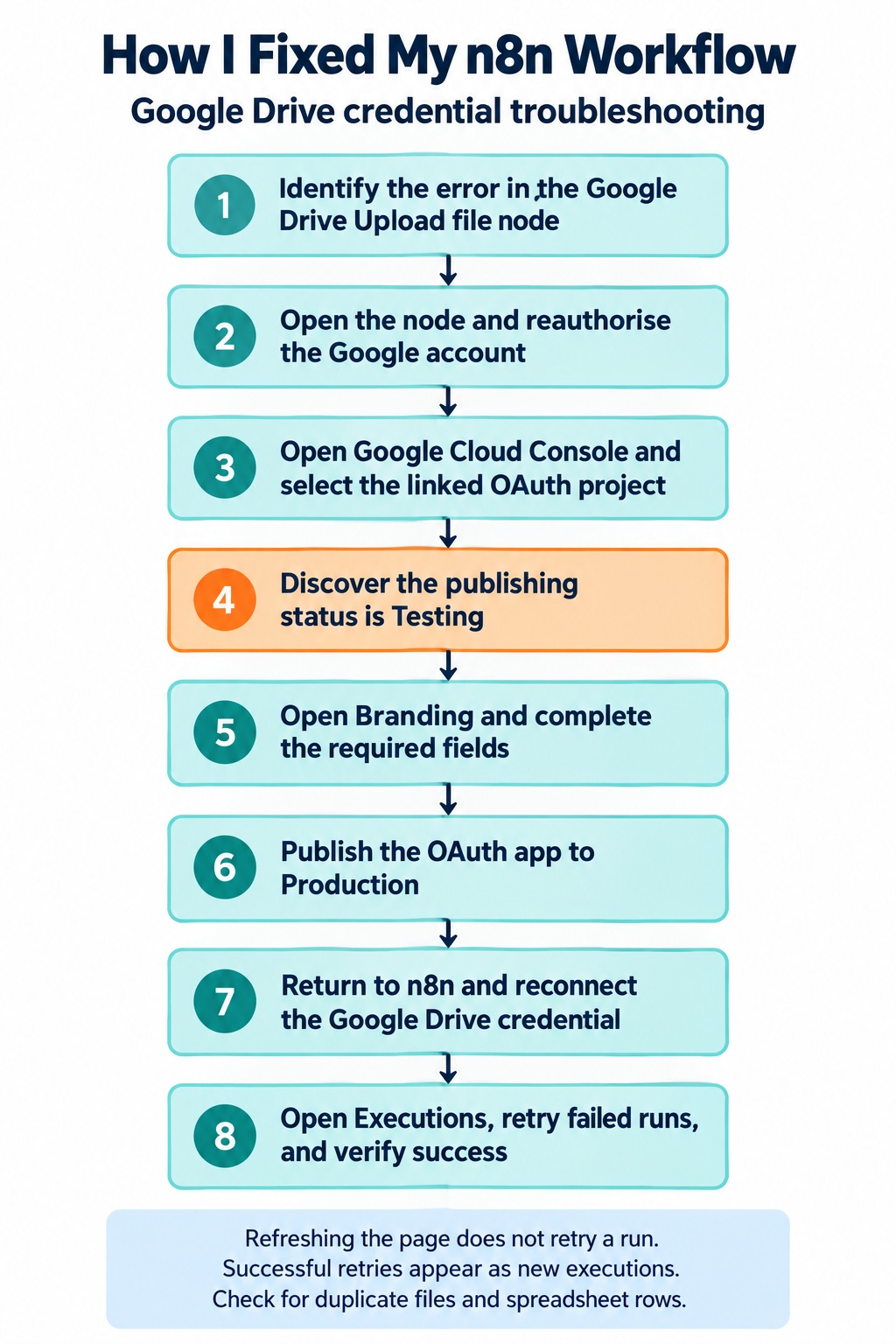
How we resolved the issue
Business Automation Solutions in Penang
Looking to automate your business processes? At Nova Web Business, we help businesses reduce repetitive tasks, connect applications and simplify daily operations.
From capturing receipt information and updating spreadsheets to sending automated notifications, we can help you build workflows that suit your needs.
Contact Nova Web Business to discuss your automation ideas and explore how we can help you save time and work more efficiently.